My 8 Favourite Development Tools for Building Squarespace Websites
Disclaimer: Some of the links in this article are affiliate links. I may receive a commission for purchases made through these links at no extra cost to you. I only promote platforms and products that I use myself.
I've already shared my favourite plugins for Squarespace, but today I want to talk about something different, development tools! While plugins add functionality to your Squarespace site, development tools are the resources I use behind the scenes to actually build websites. They help me write cleaner code, troubleshoot faster, and keep my workflow organized.
These are the tools that make my development process quick, easy, and efficient. Whether I'm tracking down a block ID, testing code across different browsers, or optimizing images for faster load times, I rely on these resources every single day.
Here are the 8 development tools I use constantly in my Squarespace projects.
1. Squarespace Chrome Extension Pro
This is a favourite of mine because this plugin allows you to Import/Export content across Squarespace websites. This has been a lifesaver for moving a lot of content between sites. I have the Pro plan which includes UI tweaks and a few of their plugins.

2. Squarespace ID Finder
Hands down one of the best tools I use when coding for Squarespace, it saves me so much time!
When I need to use a Section ID or Block ID I click this chrome extension and they appear so there is no need for me to dig through the Developer Tool to find them.

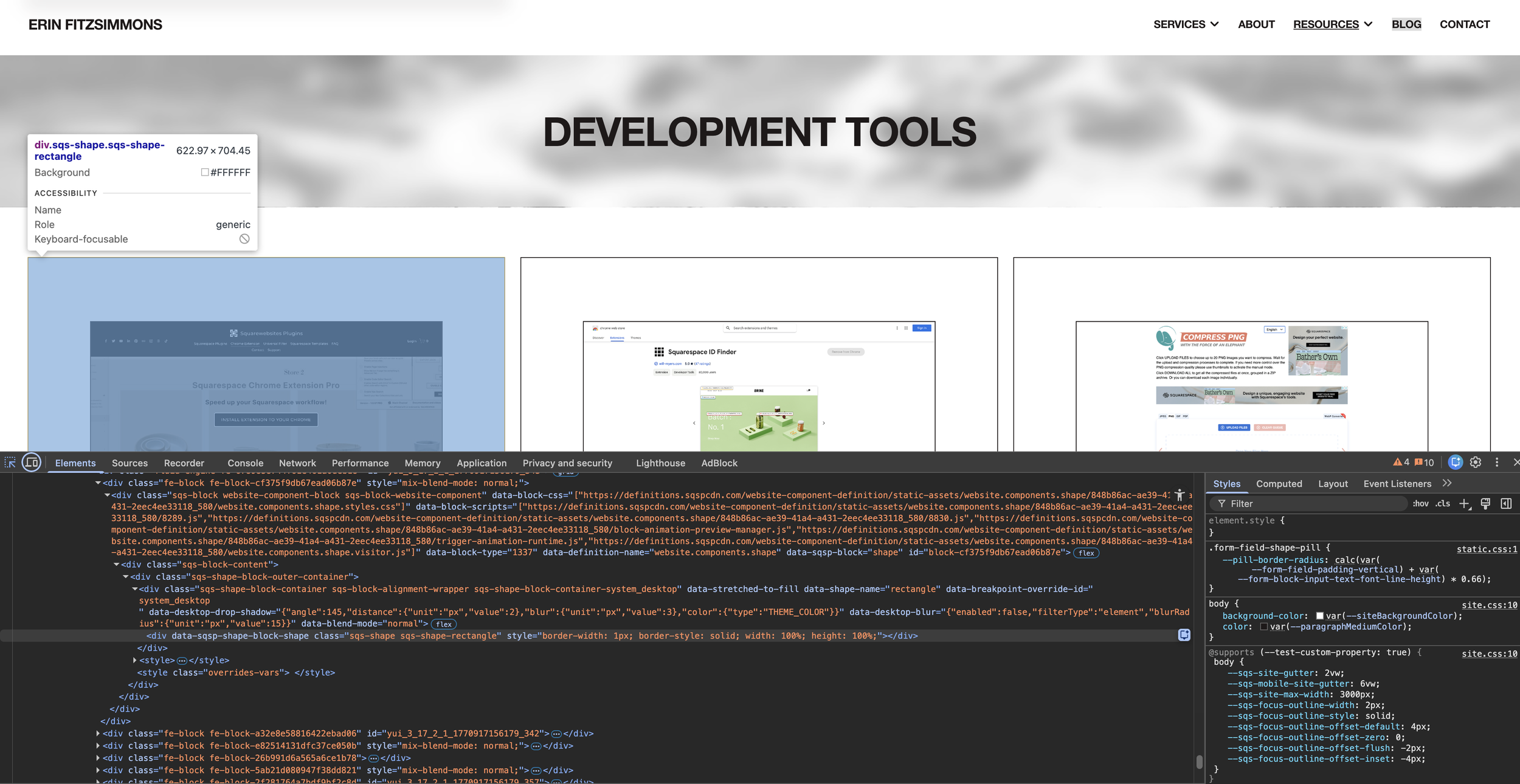
3. Chrome Developer Tools
Built right into Chrome, this is my go-to for inspecting elements, testing CSS changes in real-time, and debugging issues on Squarespace sites. I use it constantly to see how elements are styled, test out code changes before making them permanent, and troubleshoot layout problems. It's also helpful for checking mobile responsiveness and seeing how a site performs.
4. Compress PNG
It’s important to compress all images and GIFs since the file size can impact the load time of the website.
I use this website to compress all PNGs, JPEGs, and GIFs before uploading them to the website I’m working on. You can upload and download in bulk.

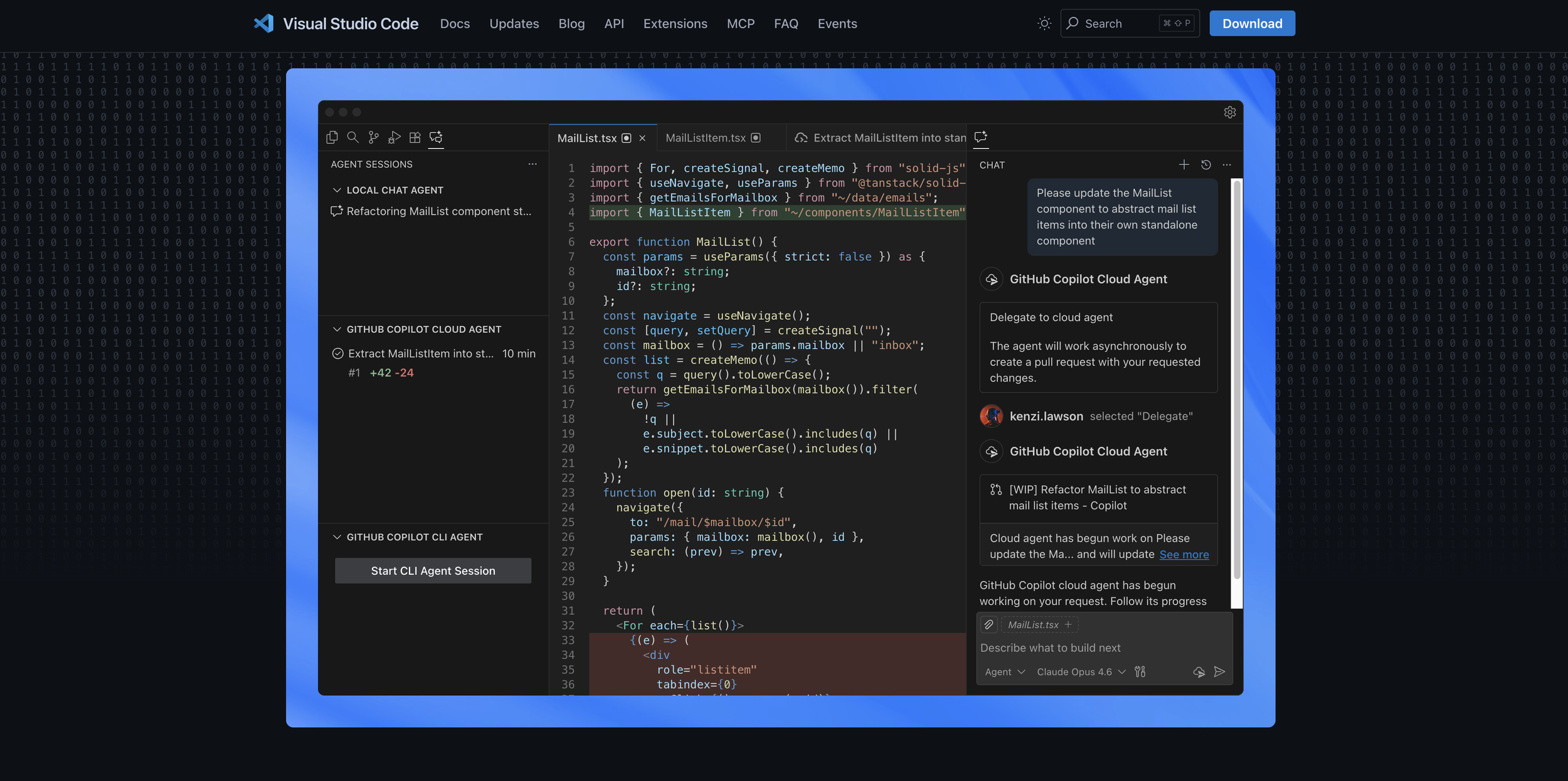
5. Visual Studio Code
A free code editor that makes writing and testing code so much easier. I use VS Code to write my code before adding it to Squarespace sites because it has features like syntax highlighting, auto-complete, and error detection that catch mistakes before they go live. It also has extensions that can format your code and make it more readable.
6. MDN Web Docs
When I’m learning about something new or feeling stuck with a code I go here where I can find detailed explanations. The documentation reflects current web standards which is important to have the most recent information.
It also includes tutorials and interactive examples you can edit and test which is helpful.

7. Autoprefixer
Autoprefixer is a web tool that automatically adds vendor prefixes to CSS code.
I use it for browser compatibility, it’s a time saver so I don’t have to manually write the multiple versions and error prevention. When I have an issue on a specific browser the first thing I do is run the code through Autoprefixer.

8. Unminify
This tool makes minified code readable again by formatting it properly. It’s helpful to use this when you want to read and understand what the code does, find bugs more easily and understand the logic flow.
It supports JavaScript (JS), CSS, HTML, XML, and JSON code.